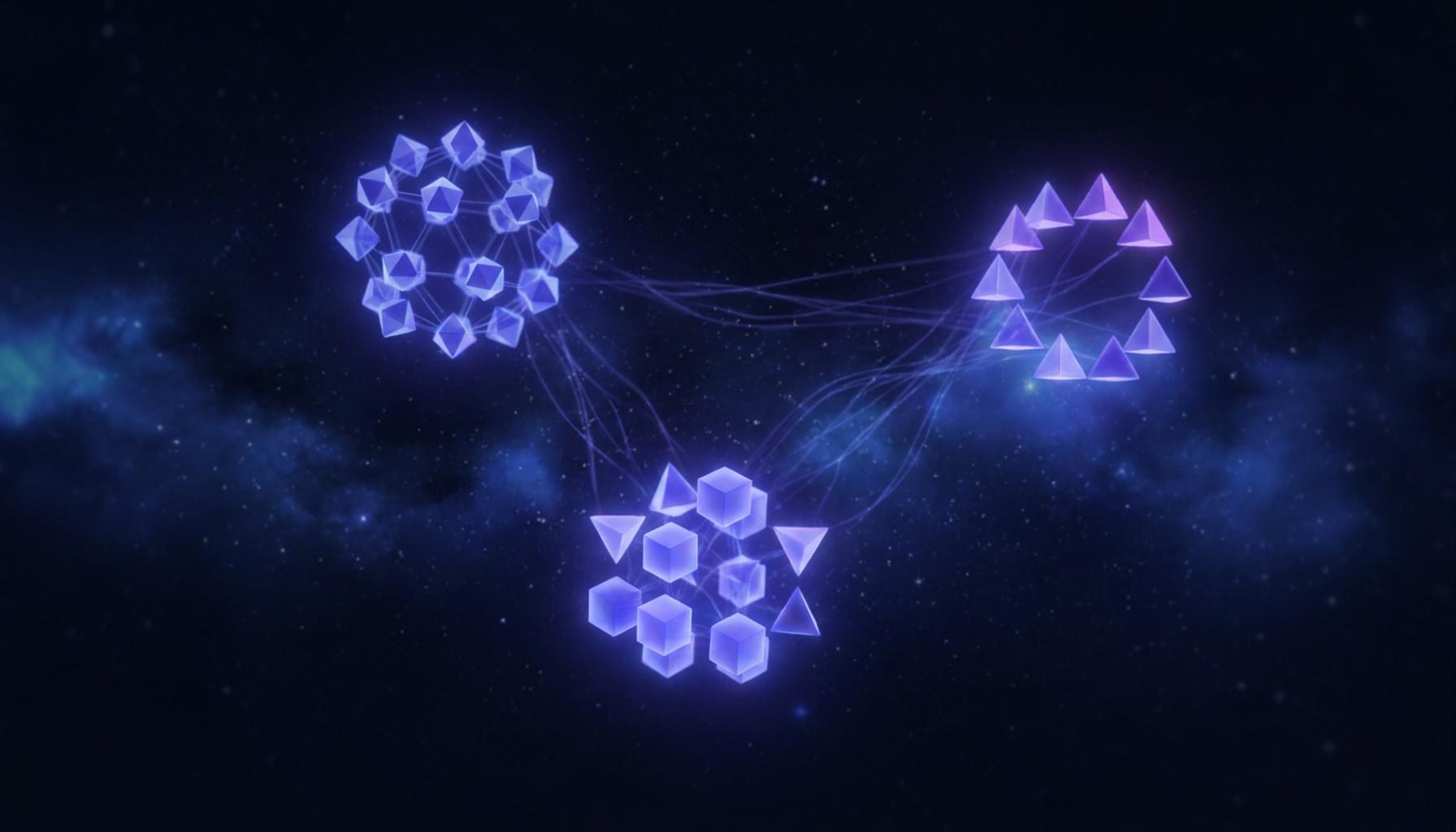

Gemini and Claude can both run your to-do list, and they do it in opposite ways. Gemini edits a list that already exists in your Google account: Google’s own help pages say Gemini can add, edit and show tasks in Google Tasks, and create lists in Google Keep. Claude keeps no list of its own, but a connector lets it act inside a list you already pay for, such as Asana, Notion or Linear. So the choice between them is not really about which model writes the better list. It is about which one can reach the list you actually check.
“add, edit, and show your tasks and reminders from Google Tasks and Samsung Reminder”
That sentence is the whole reason Gemini is different from a chat window. A chatbot that only writes a list in its own reply has produced text. Gemini, with Google Workspace connected, writes a row into Google Tasks, and that row is still there tomorrow on your phone whether or not you ever open Gemini again. Claude reaches the same outcome by a different road, through a connector to an app that already owns your list.
The difference that decides it
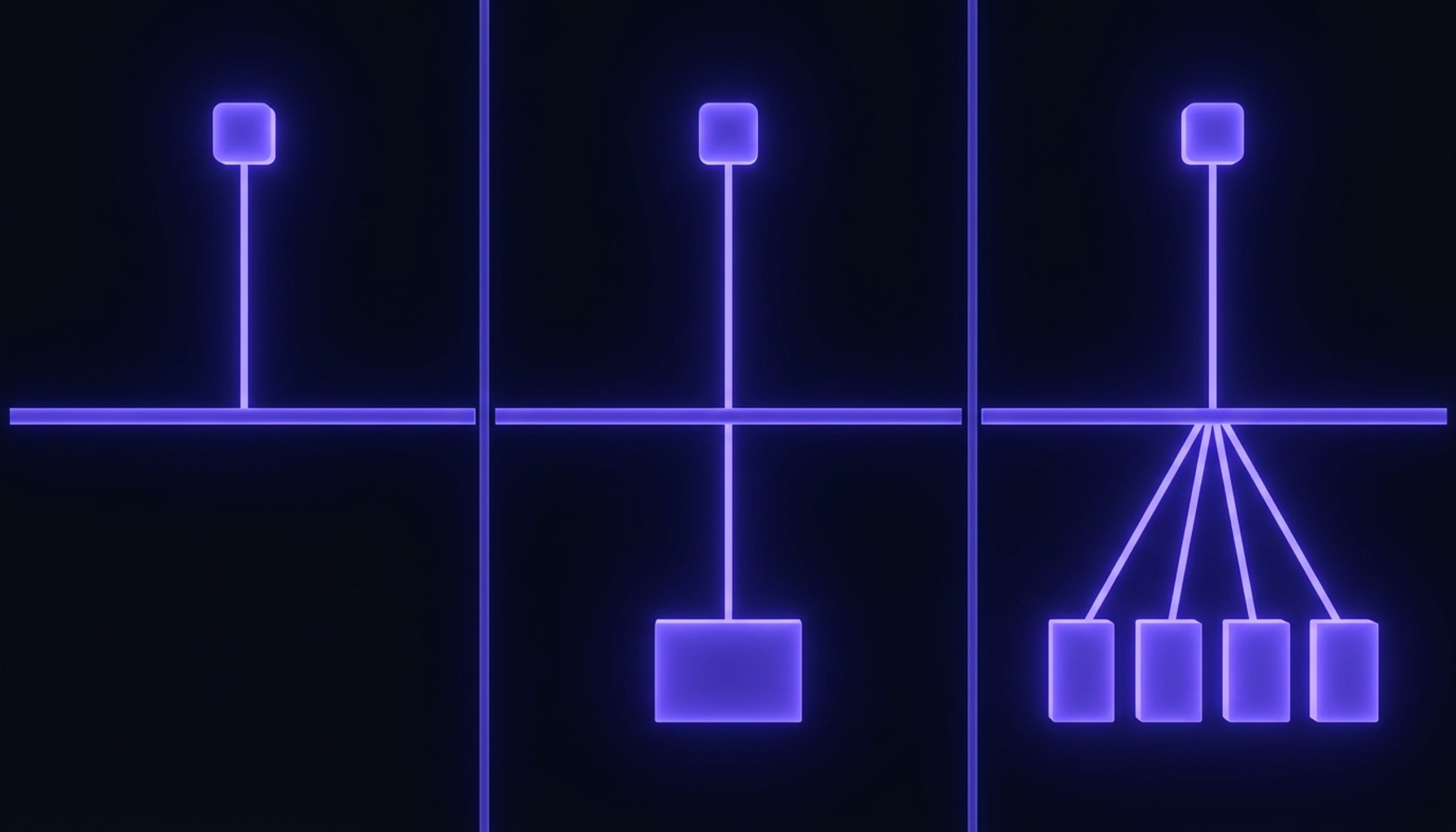
The difference between Gemini and Claude as a to-do list is reach: how far past the chat window each one can write. Gemini has a short, deep reach into one place, Google’s own apps. Claude has a long, shallow reach into whichever app you connect. Neither assistant stores tasks itself, and this is the point people miss when they ask which is smarter. Both are perfectly capable of turning a messy paragraph into a clean list. Only one of them can then put that list somewhere your Tuesday self will see it.
If your list lives in Google Tasks or Google Keep, Gemini needs nothing built and no third-party app authorised. If your list lives in Asana, Notion or Linear, Gemini cannot touch it and Claude can. If your list lives in a notes app with no connector and no Google integration, neither one reaches it, and you are back to copying text by hand. Work out which of those three situations you are in before comparing anything else.
What Gemini changes in Google Tasks
Gemini changes real rows in Google Tasks rather than describing them. Google’s Gemini Apps Help documents the phrasings, and they are ordinary sentences: “Add [task] in my to-dos.” to create one, “Mark [task name] as done in Tasks.” to close one, “Change the name of [task name] to [task name].” to rename one, “Delete my tasks about [topic, activity, event].” to clear a group, and “What are my upcoming tasks?” to read the list back. Reminders use the same channel, with “Remind me on [date] at [time] to [task].”
Two settings gate all of it, and both are easy to miss. Google states that Google Workspace must be connected to Gemini Apps, and that Keep Activity has to be on, because Gemini “can’t connect to these apps when this setting is off”. Google also warns on the same page that Gemini Apps “can hallucinate responses or provide outdated information”, which matters more when the assistant is writing to a real list than when it is only answering a question. An Undo appears in the confirmation notification after an action, though Google notes it cannot undo an action created with Gemini Live running in the background.
Gemini and Google Keep lists
Gemini writes lists into Google Keep as well as tasks into Google Tasks, and the two serve different jobs. Google documents Keep phrasings including “Create a list called [list name] with [item 1, item 2, …]” and, for an existing list, “Add [item 1, item 2, …] to my list called [list name].” That second one is the useful half: a list you can keep topping up from a conversation is closer to a working to-do list than a one-off list generated and forgotten.
Google Keep also has its own route that does not involve the Gemini app at all. The Keep help page describes a “Help me create a list” prompt inside Keep itself, which Google says is available on Pixel devices and requires a Google AI plan. The same page notes the usage may be subject to Gemini usage limits. Treat Keep as the place for a shopping list or a packing list, and Google Tasks as the place for anything with a date attached, because only Tasks carries the reminder.
What Gemini remembers, and for how long
Gemini memory and Gemini tasks are two separate things, and conflating them is the most common mistake people make with this setup. A task saved into Google Tasks is stored by Google Tasks and does not expire. A fact you ask Gemini to remember is stored by Gemini memory, and Google states plainly that “any items that you ask Gemini to remember, or instructions that you give for Gemini will last for a maximum of 18 months”.
Gemini memory also carries conditions worth knowing before you build a habit on it. Google lists a Google AI plan as a requirement for remembering specific details, and says the feature is “only available in the US”. Memory of past chats needs Keep Activity on, needs you to be 18 or over, and is not available when you sign in with a work, school or supervised Google Account, which rules it out for a large share of people reading this at work. Instructions you set under Personal Intelligence apply to every chat and are the more portable half of the feature.
Gemini schedules, capped at ten
Gemini schedules run a saved prompt on a repeating basis, which is the closest thing either assistant offers to a daily planning ritual that happens without you. Google’s examples include a daily digest of your calendar, to-do list and emails. The cap is explicit: “You can have up to 10 active schedules at a time.” Keep Activity has to be on for schedules too, and Google notes the feature is still rolling out, in its words, “gradually making this feature available to all personal Google Accounts”.
One design detail of Gemini schedules changes how much you should trust the output. Google says responses are prepared in advance, within the hour before delivery, so “rapidly changing data, like stock prices, won’t be the latest when you receive them”. For a morning task digest that is usually fine, because a task added at 7:55am is an edge case. For anything where the last hour matters, read the schedule as a prompt to go and look rather than as the answer. Google also warns that a schedule may be turned off automatically after inactivity.
How Claude edits a list it does not own
Claude edits a to-do list by borrowing someone else’s, through a connector. Anthropic’s help centre is direct about what that means.
“Connectors let Claude access your apps and services, retrieve your data, and take actions within connected services.”
Anthropic’s directory lists Asana, Notion, Linear and Atlassian under productivity tools, and gives creating an issue in Linear as a worked example. That is a genuinely different shape from the Gemini arrangement: Claude is not limited to one vendor’s list app, but it also cannot do anything at all until you authorise one. Anthropic sets out the trade in a sentence worth reading twice, warning that when connecting to a service “you’re granting Claude permission to access and potentially modify data within that service based on your account permissions”. Claude inherits your permissions, so a connector can reach whatever your own login can reach. Free accounts are limited to one custom connector, and Anthropic suggests switching to on-demand loading once you have 10 or more connectors active, because they crowd the conversation.
What Claude remembers, project by project
Claude memory works differently from Gemini memory in one way that suits a to-do list well: it is compartmented. Anthropic states that memory is on by default for Free, Pro, Max and Ultra plans, and that “each project has its own memory”. A project is, in Anthropic’s words, a self-contained workspace with its own chat history and knowledge base, and free accounts can create up to five of them. So a client project and a household project can each accumulate their own context without mixing, which is exactly the separation a single chat thread never gives you.
Searching your past chats is a separate feature from memory, and it is the paid half: Anthropic says searching past chats is available on Pro, Max, Ultra, Team and Enterprise plans. Neither feature is a task store. Claude memory is good at remembering that you invoice on the last Friday of the month and bad at being the authoritative answer to what is due tomorrow, because it saves topics rather than records. Keep the record in a list app and let the memory hold the working style around it.
Claude scheduled tasks
Claude scheduled tasks are the Anthropic answer to Gemini schedules, with a different availability line. Anthropic says scheduled tasks “are available on all paid plans (Pro, Max, Ultra, Team, and Enterprise), in Claude Cowork and in the new Claude experience”, and that each run is its own session. The cadences offered are hourly, daily, weekly, on weekdays, or manually. Crucially for a planning routine, Anthropic says scheduled tasks run remotely, so they fire on their cadence even when your computer is asleep.
Claude scheduled tasks reach further than Gemini schedules in one respect and less far in another. They can use the connectors you have already set up, which means a scheduled run can read your actual list rather than only your calendar. But they sit behind a paid plan, where Gemini schedules do not name a tier, and Anthropic does not document a cap on how many you can have, where Google publishes its 10. If you want a daily plan assembled from a list that lives outside Google, this is the only route either assistant offers.
Gemini, Claude and ChatGPT side by side
Comparing Gemini, Claude and ChatGPT as to-do lists is mostly a question of where each one stops. All three can take a messy brain dump and hand back something ordered. They diverge at the moment the conversation ends.
| Gemini | Claude | ChatGPT | |
|---|---|---|---|
| Writes to a real list | Yes, Google Tasks and Google Keep, documented by Google | Yes, through a connector to Asana, Notion, Linear or Atlassian | Through connected apps, covered separately |
| Lists it cannot touch | Anything outside Google | Anything with no connector | Anything with no app connection |
| Memory across chats | Yes, with conditions: US only for remembered facts, a Google AI plan, 18 month maximum | On by default on Free, Pro, Max and Ultra, and separate per project | Covered in the ChatGPT post |
| Repeating prompt | Schedules, up to 10 active at a time | Scheduled tasks, paid plans, hourly to weekly | Covered in the ChatGPT post |
| Reminder that reaches your phone | Yes, through Google Tasks or Samsung Reminder | Only from the connected app’s own reminders | Only from a connected app |
| Suits you if | Your list is already in Google | Your list is in a tool with a connector | You want the thinking, not the storage |
If you are coming at this from ChatGPT, the method of working inside a single chat is already covered in depth in how to use ChatGPT as a to-do list, including what ChatGPT memory does and where a chat to-do list breaks down. This page deliberately does not repeat it. The short version of the difference: ChatGPT is the strongest of the three at thinking through a list with you, Gemini is the strongest at putting the result somewhere Google will remind you about, and Claude is the strongest at working inside a tool your team or your clients already use.
A setup you can finish in twenty minutes
Setting up either assistant as a to-do list takes one evening, and the order matters because the connection has to exist before the prompts do anything.
- Decide where the list lives. Google Tasks, Google Keep, or an app with a Claude connector. Pick one. A list in two places is worse than a list in a bad place.
- Turn on the gates. For Gemini, connect Google Workspace to Gemini Apps and switch Keep Activity on. For Claude, authorise the one connector you need and nothing else.
- Move the list in once, by hand. Paste your current list in and ask the assistant to add each item. Check the result in the list app itself, not in the chat.
- Write three prompts down. One to capture, one to read today back, one to close an item. Keep them somewhere you can paste from, because a prompt you rewrite every time is a prompt you stop using.
- Add one repeating prompt. A Gemini schedule or a Claude scheduled task that reads your list back each morning. One is enough.
- Check it after a week. Open the list app alone, with no chat window, and see whether it still reflects reality. If it does not, the capture step is where it broke.
Prompts worth keeping
These prompts are written to survive being pasted without edits, which is the only kind that gets used twice. The Gemini versions use Google’s documented phrasings so they hit the Tasks and Keep integrations rather than producing a reply.
GEMINI, capture into Google Tasks:
Add "<task>" in my to-dos.
Remind me on <date> at <time> to <task>.

GEMINI, read today back:
What are my to-dos for today? Group them by how long each one will take,
and tell me which single one I should do first.

GEMINI, close an item:
Mark "<task name>" as done in Tasks.

GEMINI, top up a Keep list:
Add <item 1>, <item 2> to my list called "<list name>".

CLAUDE, capture through a connector:
Here is a brain dump. For each line that is a real next action, create a
task in <connected app>. Show me the list you are about to create and
wait for me to confirm before you create anything.

CLAUDE, read today back:
Read my open tasks from <connected app>. List only the ones that are
genuinely doable today, shortest first, and say what you left out and why.
The confirm step in the Claude prompt is not politeness. A connector acts with your own permissions, so a misread instruction creates real rows in a real tool, and asking to see the plan first costs one extra message. The same habit is worth keeping with Gemini, where the Undo in the confirmation notification is your only easy way back.
Five places this breaks
A chatbot to-do list breaks in predictable places, and knowing them in advance is cheaper than discovering them in week three.
- The setting that was never on. Gemini silently cannot reach Tasks or Keep when Keep Activity is off, and Google says so plainly. The symptom is a friendly reply and an empty list.
- The wrong account. Gemini memory of past chats is not available on work, school or supervised Google Accounts, so the habit you built on a personal account does not move to your work one.
- Capture without review. Google warns that Gemini Apps can hallucinate or return outdated information. When the assistant is writing rows rather than answering questions, that becomes a wrong task rather than a wrong sentence.
- Permission creep. Every extra Claude connector widens what the assistant can change, and Anthropic is explicit that connecting grants permission to modify data. Authorise one, not six.
- Two lists. The most common failure is not technical. It is keeping a chatbot list and a real list at the same time, so neither is trusted. Pick one, and let the other go stale deliberately.
Which one to pick
Pick Gemini if your list already lives in Google Tasks or Google Keep, if you use an Android phone, and if a reminder that reaches your lock screen matters more than flexibility. The setup is short because the integration is Google reaching into Google, and nothing else needs authorising.
Pick Claude if your list lives in Asana, Notion, Linear or Atlassian, if you work in projects that deserve separate memory, or if you want a repeating prompt that reads the real list rather than your calendar. Accept that the setup involves authorising a connector, and that the useful scheduling sits behind a paid plan.
Pick neither as the storage layer if what you actually want is a task manager. Both assistants are a very good front door onto a list. Neither is the list. If you keep finding yourself asking the chatbot to tell you what you said last week, the thing you are missing is a list that holds its own state, and an assistant that works on top of it. That is the case made in our comparison of the best AI task managers in 2026, and it is the shape of an AI task manager as a category.
Where Taskly fits, and what it cannot do
Taskly sits on the other side of the line this post has been drawing. The list is the product, not a connector bolted onto a chat window, and Otto, the assistant inside it, drafts changes you approve rather than writing straight to your list. A brain dump goes in as a paragraph and comes back as proposed tasks with a diff you accept or discard, which is the same confirm-before-you-write habit this post recommends with Gemini and Claude, except built in rather than remembered. If you want the method on its own, it is in the brain dump guide, and the individual setup is at personal task manager.
What Taskly cannot do today, stated plainly, because a page that hides this is worth less than one that does not. Taskly has no offline mode, so a train with no signal means no list. Taskly has no native mobile apps yet, only the web app on a phone browser. Taskly has no calendar layout, so if you plan by looking at a week grid, Taskly will frustrate you. And Taskly’s integration surface is small, which is precisely the thing Claude connectors are good at and Taskly is not. If any of those four is load-bearing for you, one of the setups above is the better answer this month.