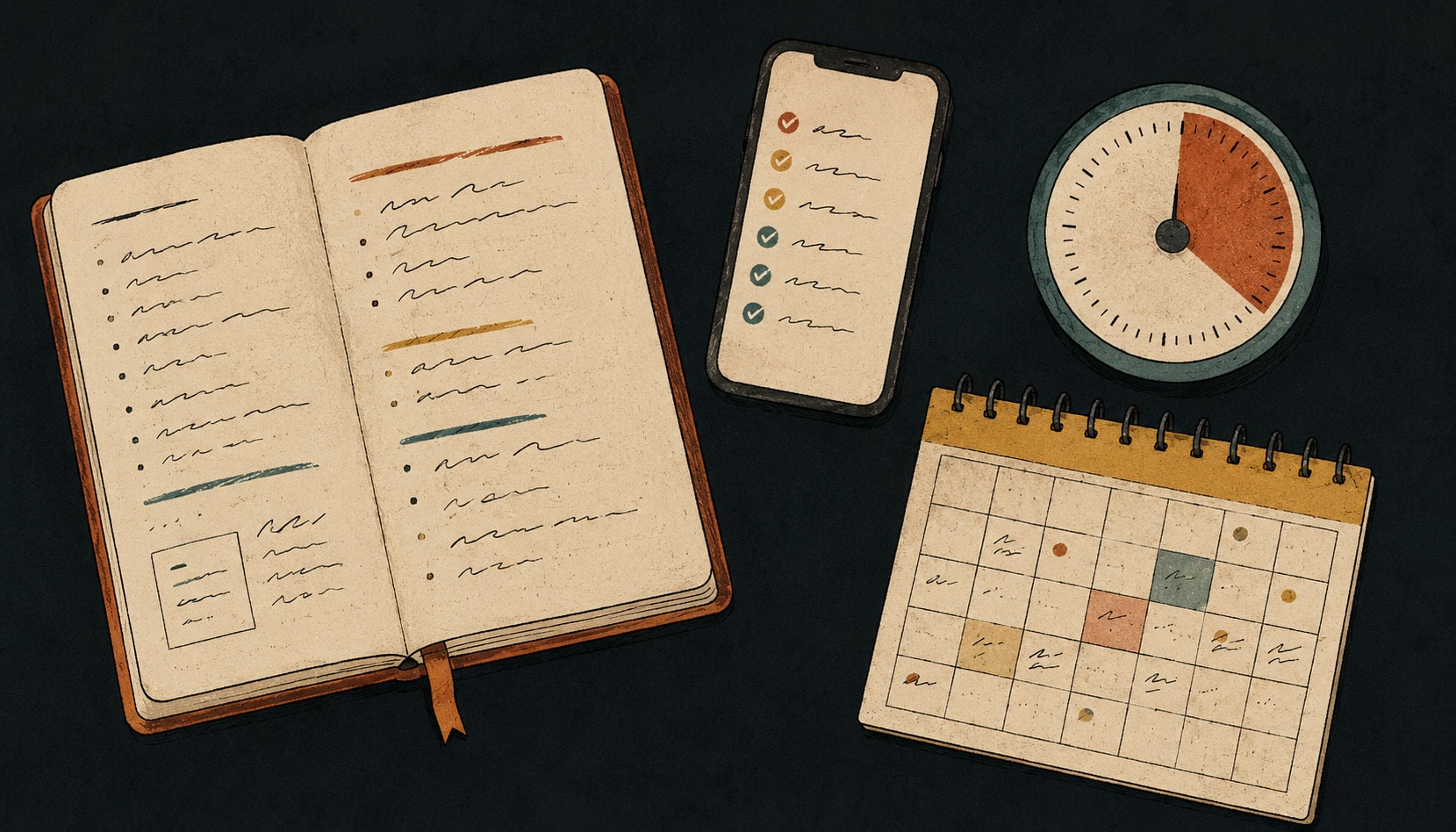
ADHD planning tools fall into eight categories, and each one does at most two of four jobs: capturing a thought before it evaporates, remembering it at the moment it matters, starting the work, and recovering after you fall off. Picking well means matching the tool to the job that is actually failing, rather than adopting whichever one looks the most organized.
Almost everyone who searches for ADHD planning tools has already tried several. There’s a familiar cycle: a new app looks like the answer, the first week is genuinely great, and by week three it’s another abandoned system you feel slightly guilty about. Then you find the next one.
That cycle isn’t a lack of willpower and it isn’t bad luck with apps. It’s usually a mismatch between what a tool is good at and what an ADHD brain actually needs from it. So this is a guide to the categories rather than a list of brand names: what each type of tool genuinely does for you, where each one tends to break, and how to build a small stack that survives a bad week.
The four jobs a tool can actually do for you
Before evaluating anything, it helps to be precise about what you’re outsourcing. There are only four jobs, and most tools do one or two of them well and pretend to do the rest.
- Capture. Getting a thought out of your head in the two seconds before it evaporates. Judged purely on speed and on always being within reach.
- Remembering. Putting the right thing in front of your eyes at the moment it matters, without you having to think to go looking.
- Starting. Reducing the activation energy between “I know I should” and the first physical movement.
- Recovering. Making it cheap to return after you’ve ignored the system for nine days. This is the job almost nothing is designed for, and it’s the one that decides whether you’re still using the tool in six months.
Score any tool against those four and the shopping gets much faster. A gorgeous planner that does capture badly will lose to an ugly note app you’ll actually open.
| Tool type | The job it does | Breaks when |
|---|---|---|
| Paper planners | Starting, and a little remembering. | The notebook isn’t with you, so capture fails. |
| Digital task managers | Capture and storage, at any volume. | The list grows frightening, or setup becomes its own project. |
| Calendars, time blocking | Remembering, and forcing a reality check. | The blocks are aspirational, so the calendar becomes fiction. |
| Timers, visualizers | Starting, by giving time visible edges. | You use the timer as the whole system. |
| Capture tools | Getting a thought out before it evaporates. | Nothing ever processes the pile that builds up. |
| Alarms, reminders | Remembering, when tied to a moment not a plan. | There are too many, and you dismiss them reflexively. |
| Body doubling | Starting, and staying started. | You need it for everything, or the session becomes a dread appointment. |
| AI assistants | Rewriting and reorganizing, where systems die. | You expect it to supply the starting, which it can’t. |
Paper planners and bullet journals
Good at: starting, and a little at remembering. Writing by hand is slower, which sounds like a downside and often isn’t: the friction makes you think about the item, and a physically open notebook on your desk is a reminder that doesn’t require you to unlock anything. Crossing things off with a pen also delivers a hit that a checkbox tap doesn’t quite match.
Breaks when: the notebook isn’t with you (capture fails), the day has an awkward shape and you run out of lines, or the format itself becomes the project. Bullet journaling in particular has a well-documented failure mode where the spreads get more elaborate every week until maintaining the journal is the work. That’s novelty doing what novelty does.
Use it if: you want one visible surface for today and you’re honest that it will not be your archive. Paper for the day, something searchable for everything else.
Digital task managers
Good at: capture and storage. Sync, search, recurring items, and the ability to hold four hundred things without any of them getting lost. This is the backbone of most working systems.
Breaks when: the list gets long enough to be frightening, or the app is powerful enough that setup becomes a genuine project. Multi-level projects, custom fields, seven views and a tagging taxonomy all feel like progress on day one. On day twenty they’re the reason you don’t open it. The other classic failure is date inflation: everything gets today, nothing gets done, and within a week the dates carry no information at all.
Use it if: you can keep the daily view brutally short. The tool should be capable of complexity and configured to hide it. If your app can’t show you a screen with three things on it, it’s working against you.
Calendars and time blocking
Good at: remembering, and forcing a reality check. A task list has infinite capacity; a calendar has twenty four hours. Putting work into blocks is often the moment people discover their to-do list was describing a three-day plan for a Tuesday.
Breaks when: the blocks are aspirational. If you block 9 to 11 for deep work every day and it happens twice a month, the calendar becomes fiction and you stop trusting the real appointments in it too. It also breaks on days that get interrupted, which for a lot of people is most days.
Use it if: you block two or three things, not the whole day, and you treat the blocks as protected time rather than a schedule. Leave more empty space than feels reasonable. The gaps are where the day actually happens.
Which calendar you put those blocks in matters less than the rule itself, but the apps do differ: ADHD calendar apps compares seven of them on whether they draw time or merely store it.
Timers and time visualizers
Good at: starting. Time blindness makes “twenty five minutes” an abstraction, and a countdown you can see turns it into an object with edges. A visual timer that shows a shrinking coloured wedge does something a number on a screen doesn’t. Pomodoro-style intervals work for the same reason: the commitment is small enough to say yes to.
Breaks when: you use the timer as the whole system. It tells you nothing about what to do, only that you’re doing something. And rigid intervals can be actively bad during hyperfocus, where the honest move is to let a good session run.
Use it if: the problem is starting rather than choosing. Pair it with a list that has already decided what you’re working on.
Capture tools: voice notes, quick capture, brain dumps
Good at: capture, obviously, but this deserves its own category because it’s the job people most often solve badly. The thought arrives while you’re walking, driving, or halfway through something else. If capturing it costs more than a couple of seconds, or requires deciding which project it belongs to, the thought is gone.
Breaks when: nothing ever processes the pile. A voice memo app with two hundred unlabelled recordings is a graveyard, not a system. The capture layer has to feed somewhere you actually look.
Use it if: you can pair it with a weekly ten-minute pass that turns the mess into items. This is exactly the sort of chore worth handing to an assistant, which we’ll come back to.
Alarms, reminders and location triggers
Good at: remembering, when they’re tied to a moment rather than a plan. “When I get home” beats “at 6pm,” because the trigger is something that will physically happen to you.
Breaks when: there are too many. Notification blindness sets in fast, and once you’re dismissing reminders reflexively they’re worse than nothing, because you’ve now trained yourself to ignore the channel. Ten daily reminders means zero reminders.
Use it if: you ration them hard. Reserve alarms for the handful of things that are genuinely time-critical and let everything else live in the list.
Body doubling
Good at: starting, and staying started. Working alongside another person, in the room or on a video call doing something unrelated, reliably shifts something that willpower doesn’t. There are paid services and free community sessions for this, and plenty of people just call a friend.
Breaks when: you need it for everything, or the scheduled session becomes one more appointment to dread. It’s a lever, not a foundation.
Use it if: there’s a specific task you’ve avoided three times. It’s the most effective thing on this list for that particular problem, and it isn’t a tool you buy.
AI assistants
Good at: the rewriting and reorganizing work, which is where a lot of systems actually die. Turning a rambling brain dump into separate items. Breaking “sort out the insurance” into a first step you could start in the next five minutes. Moving nine unfinished things to Thursday in one action instead of nine edits. Reviewing something a machine drafted takes far less activation energy than producing it from nothing, and that gap is the whole value.
Breaks when: it acts on its own. A tool that quietly rearranges your list, reschedules things, or deletes what it judged stale is corrosive here, because the entire system rests on trusting that the list still says what you left in it. Once you’re double-checking the assistant, you’ve added work rather than removed it.
Use it if: it proposes and you approve. Ask before adopting one: does it show me exactly what it’s about to change, and can I decline? If the answer is no, it will cost you more than it saves.
What to check before you adopt anything
A short screening list, from the failure modes above. It filters out most of what looks appealing in a five-minute demo.
- How fast is capture, really? Time it from locked phone to saved thought. If it’s over about five seconds, or it demands a category before it will save, it will lose to your notes app.
- Can it show me a short day? There has to be a view with three things on it, not everything sorted cleverly.
- What does it look like after a bad week? Open a demo account, imagine forty overdue items, and ask how many taps it takes to get back to usable. This single question predicts more than any feature list.
- Does it punish gaps? Streaks, guilt counters and productivity scores punish exactly the pattern ADHD produces. Losing a forty day streak is an excellent reason never to open an app again.
- Does it separate when it’s due from when I plan to do it? Without that, one slipped intention looks identical to a missed commitment, and everything drifts red.
- Is setup a project? If you can’t be usefully running in fifteen minutes, the configuration will become the procrastination.
Why switching tools feels so productive
Worth naming, because it’s the pattern underneath the whole search. Setting up a new system is novel, it has a clear first step, and it produces visible output quickly. It is, in other words, everything the work you’re avoiding is not. Motivation follows novelty and interest, so a new app is genuinely more appealing than the report, and it comes with a story where you’re being responsible.
The tell is simple: if the old tool was working until it got boring, the problem was never the tool. If it was failing in a specific way you can name, switching is reasonable. Give the new one a fortnight before you judge it, because week one flatters everything.
A stack that tends to hold
Fewer moving parts survive longer. A version most people can run:
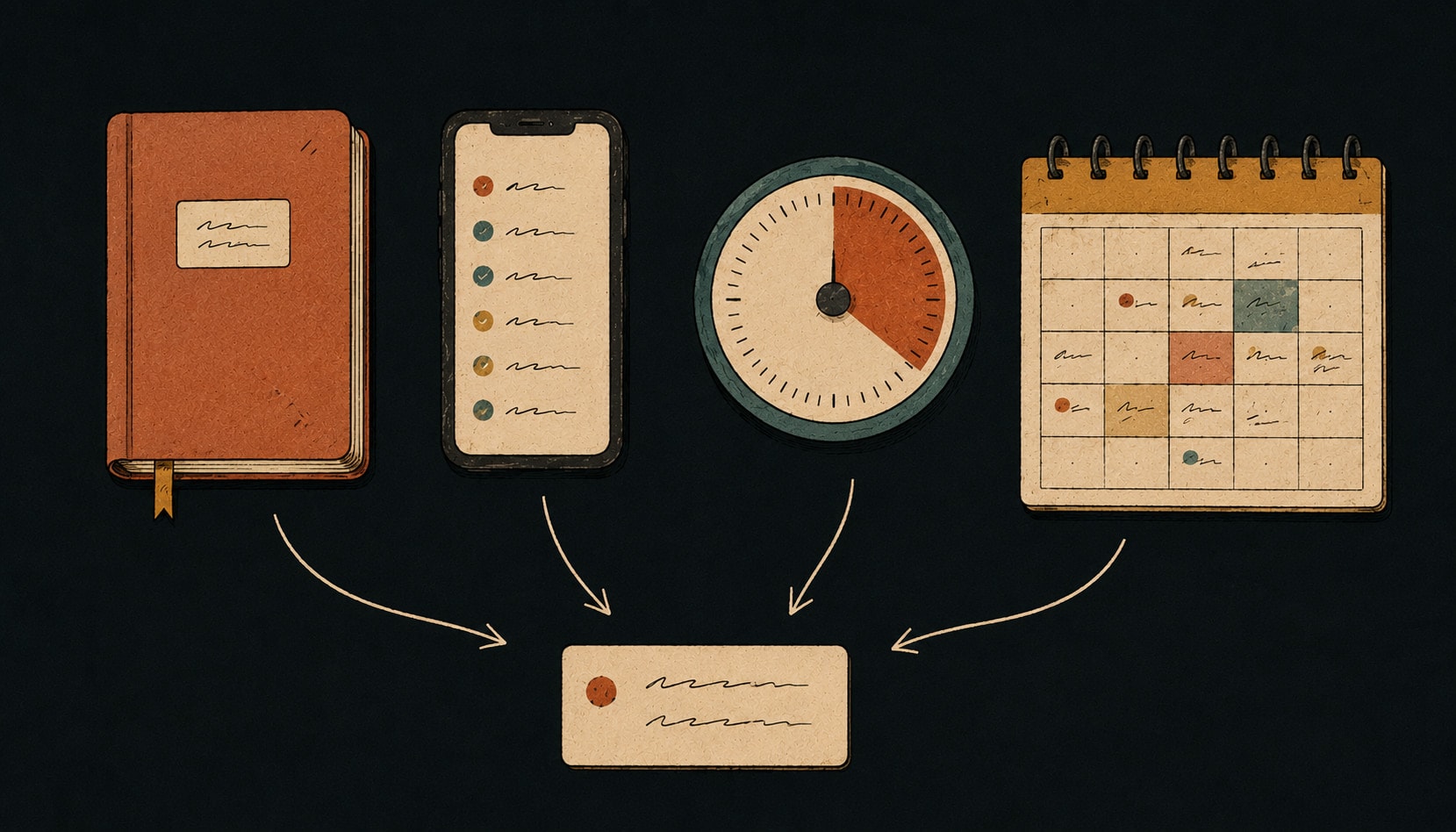
- One inbox that takes everything, reachable in seconds, with no filing decision at the moment of capture.
- One list that holds all of it, with a daily view showing three things.
- A calendar for genuine appointments plus two protected blocks, not a coloured wall.
- A visible timer for the tasks you keep bouncing off.
- Ten minutes a week to dump everything out of your head and delete without guilt whatever has clearly not mattered.
That’s a complete system. The list of rules for running it is in our guide to building an ADHD to-do list, and if the problem is specifically your working week rather than life in general, the ADHD work planner guide covers meetings, other people’s deadlines, and admin that never makes the top three.
Where Taskly fits
We didn’t build Taskly as an ADHD tool, and we’d be sceptical of anyone claiming an app solves this. But several of the failure modes above are things we deliberately designed around.
- Capture with no filing decision. One inbox, one keystroke. Sort later or never.
- Brain dumps come back structured. Paste or dictate the whole pile and ask Otto, our assistant, to sort it into separate items, split the ones that are really projects, and propose dates.
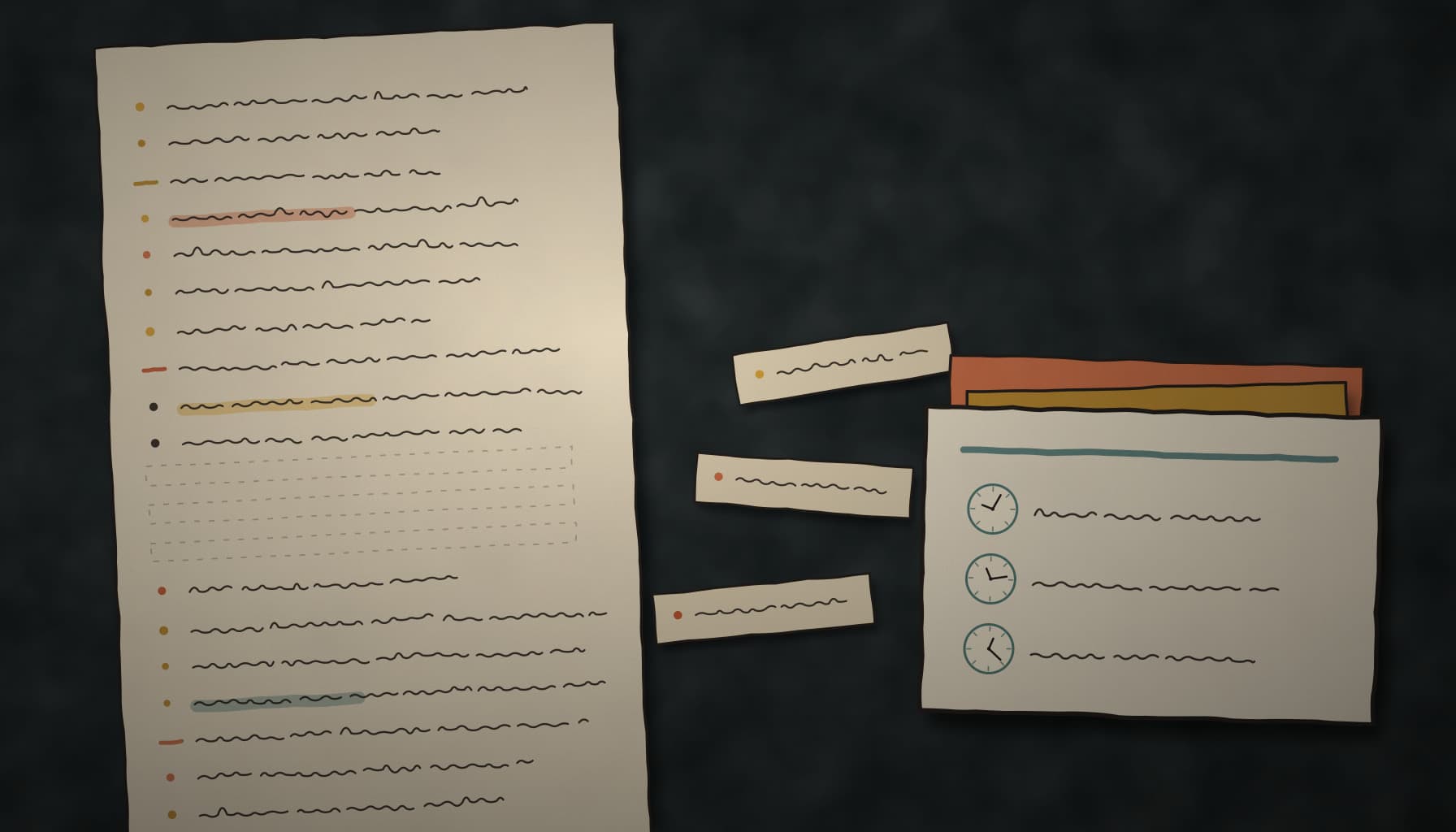
- Nothing changes without your approval. Otto shows every proposed change as a before-and-after view you accept or discard, so the list never quietly rearranges itself.
- Recovery is one move. “Push everything I didn’t finish to Thursday” is one request and one approval, not twenty edits.
- Do dates are separate from deadlines, so a slipped intention doesn’t read as a missed commitment.
- No streaks, no productivity score. Nothing that makes a gap expensive.
If the assistant part is the interesting bit, our AI to-do list page goes into what it does and what to check before trusting any tool with your list.
The short version
Pick tools by which of the four jobs they do: capture, remembering, starting, recovering. Keep the stack small enough to run on a bad day. Screen anything new on how it behaves after you’ve ignored it for a week, because that’s the moment that decides everything. And when a new app starts looking irresistible, check whether the old one was failing or just no longer new.
Frequently asked questions
What are the best planning tools for ADHD?+
Why do I keep abandoning ADHD planning apps?+
Is paper or a digital app better for ADHD?+
What is body doubling for ADHD?+
Do timers help with ADHD?+
How many planning tools should someone with ADHD use?+
Why do reminders and notifications stop working?+
Can AI assistants help with ADHD planning?+
This is practical productivity writing, not clinical guidance. Saba Majidi holds a master’s degree in counseling psychology, but nothing here is a substitute for advice from a clinician who knows your situation. If ADHD is significantly affecting your work or wellbeing, that’s who to talk to.